What a default gateway does
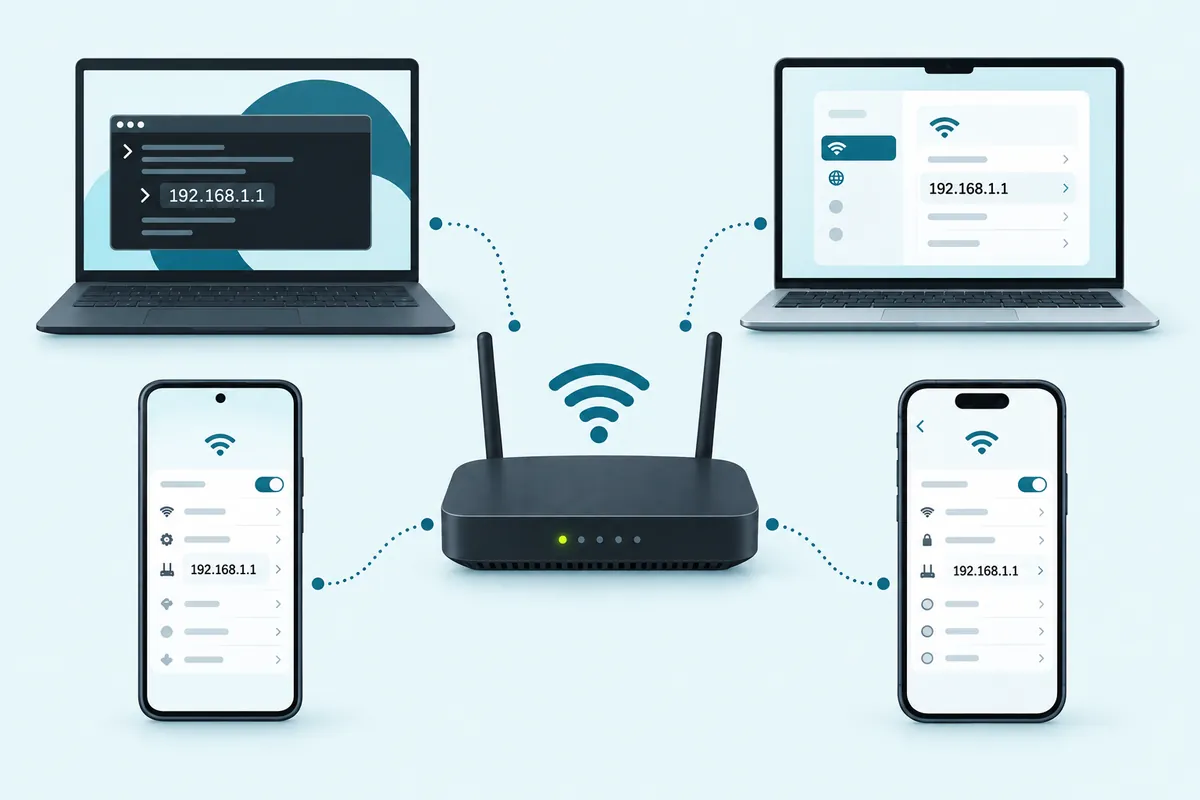
A default gateway is the device your computer sends traffic to whenever the destination isn't on your local network. On a home network that device is your router, so the gateway address is the router's own LAN address, the one you type to reach its settings.
Your phone or laptop learns that number on its own. When it joins the network, the router's DHCP server hands it a lease: an IP address, a subnet mask (usually 255.255.255.0), one or more DNS servers and the gateway. So any device already on your Wi-Fi can tell you the router's address. You just need to know which screen prints it.
Five steps to your router's IP address
- Connect to the network you want to manage, by Wi-Fi or cable. Mobile data, a VPN or a hotel network will show someone else's gateway.
- Open the details for that connection. Phones, tablets and Macs keep them in Settings; Windows and Linux can also print them in a terminal.
- Look for a line labeled Default Gateway, Router or Gateway.
- Read the IPv4 value, four numbers separated by dots. Ignore anything that begins with
fe80. - Type
http://and that number into the browser's address bar, then sign in.
| Device | Where to look | Field label |
|---|---|---|
| Windows 11 | Settings > Network & internet > Advanced network settings > Hardware and connection properties | IPv4 default gateway |
| Mac | System Settings > Network > Wi-Fi > Details… > TCP/IP | Router |
| iPhone or iPad | Settings > Wi-Fi > (i) beside your network | Router |
| Google Pixel | Settings > Network & internet > Internet > gear beside your network | Gateway (under network details) |
| Samsung phone | Settings > Connections > Wi-Fi > gear > View more | Router |
| Linux | Terminal: ip route show default | the address after via |
| Chromebook | Settings > Network > Wi-Fi > your network | Gateway |
| PlayStation 5 | Settings > Network > Connection Status > View Connection Status | Default Gateway |
Windows 11 and 10, four ways
From the Settings app
On Windows 11, open Settings > Network & internet > Advanced network settings, then pick Hardware and connection properties under More settings. The page lists every adapter. Find the block for the Wi-Fi or Ethernet connection you're actually using and read IPv4 default gateway.
With ipconfig
Press Windows + R, type cmd and press Enter, then run ipconfig. You get one block per adapter, so read only the one for your live connection, usually "Wireless LAN adapter Wi-Fi" or "Ethernet adapter Ethernet". Its Default Gateway line is the router.
Skip any block that says "Media disconnected". Skip virtual adapters too, the ones named vEthernet (Hyper-V or WSL), VirtualBox or after your VPN, since they carry their own gateways or none. To print only the gateway lines, run:
ipconfig | findstr /i gateway
With PowerShell
Run Get-NetIPConfiguration. It prints a short card for each connected adapter, and the router sits on the IPv4DefaultGateway line. With no extra options, Microsoft's documentation says it covers only connected, non-virtual interfaces, which makes it tidier to read than a full ipconfig dump.
With route print
route print shows the whole routing table. Under IPv4 Route Table, find the row where Network Destination and Netmask both read 0.0.0.0. That row is the default route, and the Gateway column beside it is your router. When two such rows appear, Windows prefers the one with the lower Metric.
Mac: the TCP/IP tab or one Terminal line
Apple's path is System Settings > Network, then your connection (Wi-Fi or Ethernet), then Details… and the TCP/IP tab. The Router line is your default gateway. On a normal home setup, Configure IPv4 reads Using DHCP.
Terminal gets you there faster:
route -n get default
Read the gateway: line of the output. netstat -nr | grep default gives the same answer as a table row. You can also hold Option while clicking the Wi-Fi icon in the menu bar for a longer menu with technical details, which on many macOS versions includes the router's address.
Phones and tablets
iOS and iPadOS
Open Settings > Wi-Fi and tap the (i) next to the network you're on. The IPv4 Address group lists IP Address, Subnet Mask and Router, and Router is the gateway. Configure IP should say Automatic. If it says Manual, someone typed those values in by hand, and a stale entry there can keep the router page from loading.
Pixel and other near-stock Android
On a Pixel, go to Settings > Network & internet > Internet and tap the gear next to the connected Wi-Fi network. Scroll to the network details, where the router's address appears as Gateway. On some Android versions that section sits under Advanced. Phones from other makers use similar wording, but the menus move around by brand and version.
Samsung Galaxy with One UI
Go to Settings > Connections > Wi-Fi and tap the gear beside the connected network. On recent One UI versions, tapping View more reveals a Router line with the gateway. The same screen has a Manage router button, which opens the router's page in a browser with the gateway address in the address bar.
Some older guides tell you to switch IP settings from DHCP to Static just to make the gateway field show up. Look if you must, then back out without saving. A saved static setup keeps the old numbers and can cut the phone off once the router changes.
Linux and ChromeOS
In a Linux terminal
Run ip route show default. The output looks like this:
default via 192.168.1.1 dev wlan0 proto dhcp metric 600
The address after via is your router, and dev names the interface carrying the traffic. On systems that use NetworkManager, nmcli dev show | grep GATEWAY prints an IP4.GATEWAY line for each device. On a GNOME desktop, open Settings > Wi-Fi, click the gear beside the connected network and read Default Route.
On a Chromebook
Open Settings > Network > Wi-Fi and select the network you're connected to. Expand the Network section on that page to see the IP address and Gateway. The Diagnostics app (Settings > About ChromeOS > Diagnostics) also has an IP Configuration panel.
Skip the Linux terminal for this job. The Linux development environment runs inside a container with its own internal network, so commands there report an internal 100.115.92.x address instead of your router.
Game consoles and smart TVs
You'll want the gateway on a console or TV when you give it a fixed address, or when you need to confirm it's on the same network as your phone.
- PlayStation 5: Settings > Network > Connection Status > View Connection Status. The list includes Default Gateway next to the console's IP address and subnet mask.
- Xbox Series X|S and Xbox One: Profile & system > Settings > General > Network settings > Advanced settings shows the console's current IP settings, gateway included.
- Smart TVs: look under Network for a Network Status or IP Settings screen. Depending on the brand, the field says Gateway or Router, and the TV's manual gives the exact path.
Default gateway blank or "not available"
A blank Default Gateway line, or one reading 0.0.0.0, means that adapter never got a working DHCP lease from the router, so Windows has no route off the local network. The Windows troubleshooter reports the same fault as "The default gateway is not available." Work through these fixes in order:
- Disconnect and reconnect. Turn Wi-Fi off and on, or unplug the cable for a few seconds. If other devices are offline too, restart the router.
- Renew the lease. In Command Prompt, run
ipconfig /releaseand thenipconfig /renew. - Update the network adapter driver. Compare the driver date in Device Manager with the latest version on your PC or adapter maker's site. A driver swapped in by a Windows Update is a common trigger.
- Reset the network stack. Open Command Prompt with Run as administrator, run
netsh winsock resetandnetsh int ip reset, then restart. Microsoft's Wi-Fi troubleshooting page also describes Network reset, a bigger step that reinstalls every adapter and may mean setting up VPN software again. - Check your security suite. A third-party antivirus with its own network protection can interfere with the connection, so review its settings or its maker's help pages. Keep your firewall on.
169.254 addresses, fe80 gateways and double entries
169.254.x.x: no lease arrived
A device that asks for an address and hears nothing back gives itself one from 169.254.0.0/16, the link-local block Windows calls APIPA. With that address it can't reach the router or the internet. Check the cable, or rejoin the Wi-Fi with the right password. Then use a device that does connect to confirm the router's DHCP server is switched on in its LAN settings.
fe80:: sitting next to the IPv4 gateway
A gateway such as fe80::1%12 is the router's IPv6 link-local address. Many routers advertise one alongside the IPv4 gateway, and it's normal. The %12 part is only your PC's interface number. Browsers need the IPv4 line, so use that one.
More than one gateway listed
Two gateways usually mean one of three things: a VPN adapter is active, Wi-Fi and Ethernet are connected at the same time, or Hyper-V, WSL, Docker or VirtualBox has added a virtual adapter. Use the gateway on the physical adapter that's carrying your traffic. Unplugging the cable or turning off Wi-Fi for a moment shows which one that is.
The address is right but no login page appears
A correct gateway doesn't guarantee a browser sign-in page. The usual reasons:
- An ISP gateway with its web page turned off. Some providers manage their boxes only through an app. Our main guide lists the systems that skip the browser login.
- A mesh system run from an app. eero and Google Nest Wifi are set up and managed in their own apps rather than in a browser.
- A second router behind the ISP box. Your devices report the router they're connected to, which is usually the one you want. The ISP box has its own address on the far side of that router.
- A network you don't manage. Hotel, school and office gateways belong to someone else, so leave them alone.
A Wi-Fi extender, mesh satellite or second router running as an access point has an address of its own, but it isn't your gateway. You'll find it in the main router's list of connected devices, or you can reach it through the hostname its maker gives in the manual. If the page still won't load, the troubleshooting steps on our sign-in guide cover browser and connection problems in order.
Putting the gateway address to use
- Bookmark it. Type
http://plus the address, let the page load and save it. Most home routers answer on plain http at that address. - Fill in manual network settings. Cameras, NVRs, consoles and printers set up by hand ask for a gateway. Enter the router's address there, with subnet mask
255.255.255.0and a DNS server (the router's own address works on most home networks). Give the device an address outside the router's DHCP range, or reserve one in the router. - Check which subnet you're on. A gateway of
192.168.0.1means your devices live on 192.168.0.x. Our 192.168.0.1 and 192.168.1.1 comparison explains why that matters for cameras and second routers.
Gateway lookups people ask about
Can a website look up my router's gateway address for me?
No. A website sees only your public IP address, the one your internet provider assigns, while your gateway is a private address that stays inside your home network. Since Chrome 142, a public site that tries to reach devices on your local network has to ask permission first. Decline that prompt unless you trust the site, and read the number from your own device instead.
Is the default gateway always my Wi-Fi router?
On most home networks, yes. If your provider's combo gateway makes the Wi-Fi, the gateway is that box. If your own router sits behind a provider modem, your devices report your router. On a work network, or while a VPN is running, the gateway can belong to someone else entirely, so check which connection you're reading.
Can I change the default gateway on my device?
Yes, by switching the connection to manual or static settings and typing a different gateway. At home that rarely helps, and a wrong entry cuts you off. Leave the device on automatic (DHCP). If you want the router to use a different address, change it on the router itself, and your devices pick up the new gateway when their leases renew.
Why does my Chromebook's Linux terminal show a different gateway?
The Linux development environment on a Chromebook runs inside a container, and that container sits on its own small internal network. Commands like ip route therefore report the container's internal gateway, a 100.115.92.x address, rather than your router. Open ChromeOS Settings > Network, select your Wi-Fi network and read Gateway there to get the real router address.
Do I need admin rights to see the gateway on a work laptop?
No. ipconfig, route print and the Settings app all show the gateway to a standard user. Only the reset commands, such as netsh winsock reset, need an administrator prompt. On a company laptop, the network and its gateway belong to your IT team, so ask them before you change adapter settings or run resets.
Keep going