What the third number tells you
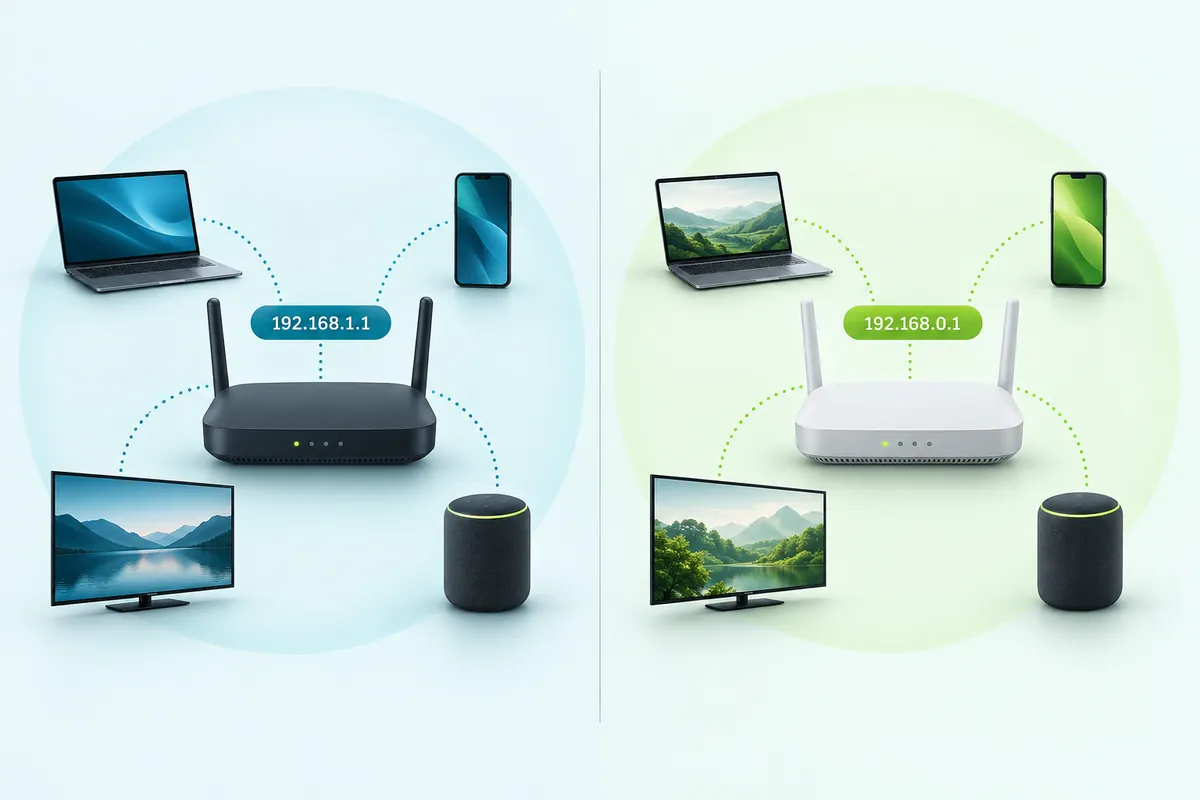
An IPv4 address is four numbers called octets. Home routers almost always pair their address with the subnet mask 255.255.255.0, also written /24. With that mask, the first three octets name the network and the last one names the device. So 192.168.1.1 is device 1 on network 192.168.1, and 192.168.0.1 is device 1 on a different network, 192.168.0.
Each of those networks has 256 addresses, and 254 of them can go to devices:
.0is the network address, which no device uses..1to.254are usable host addresses. The router normally takes.1..255is the broadcast address, used to reach every device at once.
A laptop on 192.168.0.x treats 192.168.1.1 as a machine on some other network. Instead of talking to it directly, the laptop hands the request to its own gateway, so a router set to 192.168.1.1 on the same cable never answers.
Both ranges come from the same private block. RFC 1918 sets aside 192.168.0.0/16, which holds 65,536 addresses, room for 256 separate /24 home networks. It also reserves 10.0.0.0/8 and 172.16.0.0/12, which is why some gateways sit at addresses like 10.0.0.1. None of these can be reached from the public internet.
192.168.1.1 and 192.168.0.1 side by side
| Setting | 192.168.0.1 | 192.168.1.1 |
|---|---|---|
| Network | 192.168.0.0/24 | 192.168.1.0/24 |
| Subnet mask | 255.255.255.0 | 255.255.255.0 |
| Usable device range | .1 to .254 (254 addresses) | .1 to .254 (254 addresses) |
| Broadcast address | 192.168.0.255 | 192.168.1.255 |
| Typical makers and ISPs | TP-Link, D-Link, Tenda, Cox Panoramic, Virgin Media Hub | Linksys, many Netgear and ASUS models, Verizon Fios Router |
| Speed | Identical | Identical |
| Security | Identical | Identical |
| When to pick it | Your gear already uses it, or 1.x is taken upstream | Your gear already uses it, or 0.x is taken upstream |
Makers and providers that start on 192.168.0.1
These defaults come from each company's own support pages. Models change, so the label on your unit has the final word.
- TP-Link: TP-Link's login FAQ gives
tplinkwifi.netor192.168.0.1as the default address and suggests trying192.168.1.1if those don't load. - D-Link: D-Link's router login help uses
http://192.168.0.1orhttp://dlinkrouter.local. - Tenda: Tenda's sign-in guide lists
http://tendawifi.comor192.168.0.1. - Cox: Cox's support site and community point Panoramic Wifi gateway owners to
192.168.0.1for the gateway's admin tool. - Virgin Media (UK): Virgin Media's Hub help names
192.168.0.1as the Hub address. In Modem Mode, where your own router takes over, the Hub answers at192.168.100.1instead.
For brands that ship on 192.168.1.1, see our list of routers that ship on 192.168.1.1. Mesh systems such as eero and Google Nest Wifi use other ranges again.
Speed and security are a tie
Neither address is better. Both are private /24 networks with the same 254 device slots, and your internet speed depends on your plan and your hardware, not the third octet.
Moving a router from 192.168.1.1 to 192.168.0.1, or to something unusual, adds almost no protection. Anyone already on your Wi-Fi can read the new gateway in seconds, and nobody outside can reach either address. A strong admin password and current firmware do the real work, so change the address only to fix an actual conflict.
Checking which range your network uses
You don't have to sign in to anything to find out. Any of these works:
- Your own device's address. If your phone or laptop shows
192.168.0.23, you're on the 0.x network.192.168.1.23means 1.x. - The router label. Most stickers print the default login address, and sometimes a hostname such as tplinkwifi.net.
- The gateway field. The Router or Default Gateway entry on your device is the router's current address. Our gateway lookup for every device shows where it lives on Windows, Mac, phones, Linux and Chromebooks.
The label only shows the factory default. If someone changed the address later, trust the gateway field on your device.
Modem and router on the same range
The difference starts to matter when two boxes claim the same network. Say your ISP's modem-router uses 192.168.1.1 and you plug your own router into it. Your router's WAN (internet) port gets a 192.168.1.x address from the ISP box, while its LAN side also wants to be 192.168.1.1. It can't route between two identical networks, so the internet drops or the admin page opens the wrong box.
Some routers sort this out on their own, which is why a router's IP can seem to change by itself. When a TP-Link router sees its WAN and LAN sides on the same subnet, it moves its own LAN address, typically between 192.168.0.1 and 192.168.1.1, so traffic keeps flowing. Nothing is broken. Look up the new gateway on your device and use that.
Double NAT, and how to get rid of it
Double NAT means your traffic passes through two routers that each translate addresses: the ISP gateway and your own router. Browsing still works, but anything that needs incoming connections struggles, because the outer box knows nothing about the inner one's port rules.
Typical signs:
- An Xbox reports Double NAT detected in its network settings, and consoles show a Strict or Moderate NAT type.
- Port forwards you set on your own router do nothing.
- Online games, voice chat and remote camera apps connect poorly.
Ways to fix it:
- Put the ISP box in bridge mode, so it acts as a plain modem. Virgin Media calls this Modem Mode.
- Use IP passthrough where it's offered. On AT&T gateways, IP Passthrough hands one device, your router, the gateway's public address.
- Or leave the ISP box as the only router and switch your own router to access point mode.
While you're sorting this out, you may bump into 192.168.100.1. On many cable modems, and on some satellite dishes, that address opens the modem or dish status page rather than a full router admin page.
VPNs, cameras and access points
Remote networks that use your range
A VPN into an office, or into another home, breaks in a confusing way when both ends use 192.168.1.0/24. Your laptop treats the remote printer's address as local and never sends the traffic through the tunnel. If you run your own VPN, give your home network a less common range, such as 192.168.37.x, rather than 0.x or 1.x, which huge numbers of home routers already use.
Cameras and recorders set to the other range
Some IP cameras ship with a fixed address in 192.168.1.x. Hikvision documents 192.168.1.64 as its cameras' default, and many Dahua devices start at 192.168.1.108. On a 192.168.0.x network you can't reach them until the ranges match. Use the maker's setup tool (Hikvision's is called SADP) to change the camera's address, or give a PC a temporary static address in the camera's range, make the change, then set the PC back to automatic. Newer cameras often take an address from DHCP instead.
A second router as an access point
A router running in access point mode needs a LAN address inside the main router's subnet, for example 192.168.0.2 when the main router is 192.168.0.1. Turn off its DHCP server so only the main router hands out addresses, and give it an address outside the main router's DHCP pool.
Moving a router from 192.168.0.1 to 192.168.1.1 (or back)
- Sign in to the router at its current address, ideally from a computer on a cable.
- Open the LAN settings. TP-Link's LAN IP guide uses Advanced > Network > LAN, and many D-Link models use Setup > Network Settings (D-Link's steps).
- Enter the new address, for example
192.168.1.1, and keep the mask at255.255.255.0. Make sure no other device already uses it. - Check the DHCP pool. Many routers move it to the new range automatically. If yours doesn't, set it to match, such as 192.168.1.100 to 192.168.1.199.
- Save. The router applies the change and usually restarts, so your connection drops for a minute or two.
- Reconnect, or run
ipconfig /renewon Windows, then open the new address in your browser.
Then update everything that relied on the old range: DHCP reservations, port forwards, printers, NAS drives and cameras with static addresses, and your bookmarks. A phone browser can make the change too. Expect the phone to fall off Wi-Fi while the router restarts, and reconnect before you open the new address.
TP-Link warns that port forwarding (Virtual Server), DMZ and address reservation rules need setting up again when the new LAN address sits on a different subnet. Screenshot those pages before you save.
Can't connect after the change
If the new address won't open, your device is probably still holding its old lease, pointing at a gateway that no longer exists. Turn Wi-Fi off and on, unplug and replug the cable, or run ipconfig /release followed by ipconfig /renew.
A device that won't reconnect at all may have a static IP from the old range. Switch it back to automatic, or give it an address in the new range.
Subnet choices: short answers
Which subnet should I choose to avoid VPN clashes?
Pick a private range few other networks use, such as 192.168.37.0/24 or another number from the middle of the 192.168 block. Avoid 192.168.0.x and 192.168.1.x, since most home routers default to them and a remote network is likely to match. Keep the mask at 255.255.255.0 and move the DHCP pool along with the router's address.
Will changing the router's LAN address change my public IP?
No. The LAN address is the router's private address inside your home, and changing it affects only your own devices. Your public IP is assigned by your internet provider to the WAN side of the modem or gateway, and it changes only on the provider's schedule. Websites and games keep seeing the same public address after you switch ranges.
Does bridge mode turn off the ISP box's Wi-Fi?
On most provider gateways it does. Bridge or modem mode switches off the box's routing, and its Wi-Fi usually goes with it, so your own router supplies the wireless network. Virgin Media, for example, notes that some Hub features stop working in Modem Mode. Check your provider's help page before switching, and have your own router ready first.
Can I run two routers without double NAT?
Yes. Put the provider's box in bridge mode or IP passthrough so only your router does the routing. Or leave the provider's box in charge and switch the second router to access point mode. In that mode it extends the network, takes an address in the main subnet and stops handing out addresses of its own.
I forgot the new address I gave my router. How do I find it?
Your devices still know it. Connect to the router's network and read the Default Gateway or Router field in your device's network details; our gateway lookup page shows where that is on each system. If nothing can connect at all, a factory reset returns the router to its original LAN address and default login, but it also wipes your other settings.
Keep going