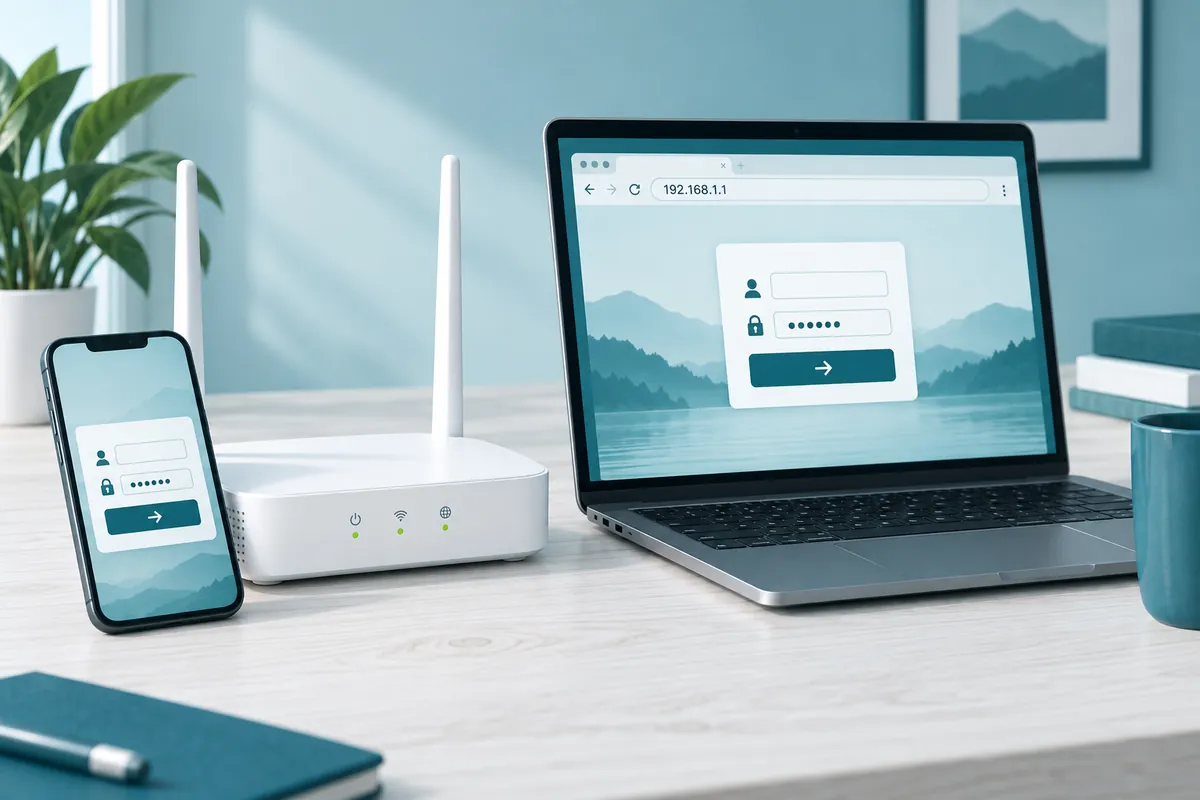
The 192.168.1.1 login in five steps
- Join the router's Wi-Fi or plug into a LAN port.
- Type
http://192.168.1.1into the browser's address bar and press Enter. - Enter the admin username and password exactly as printed or set.
- Create a new admin password if a setup wizard appears.
- Save your changes, then sign out before closing the tab.
If the page never loads, the checks right below and the fix list further down work through the usual causes in order.
A "create password" screen instead of a login box
A new or freshly reset router often skips the login box. Newer TP-Link models make you create an admin password on first login. ASUS routers open their Quick Internet Setup page the first time you sign in, and current Netgear routers have you set the password during setup. That's normal: there's no password to find yet, so pick one you'll remember and save it in a password manager.
Why a correct password gets rejected
- Passwords are case-sensitive, so
Adminandadmindon't match. - When a manual says the password is "blank," leave the field empty rather than typing the word.
- Some screens, including Linksys, ask for a password only. Enter the admin password there; there's no hidden username to hunt for.
- Browser autofill often drops in the Wi-Fi key or an old password. Clear the field and type it yourself.
Checks before the sign-in page loads
The Open 192.168.1.1 button near the top of this page is a plain link to http://192.168.1.1. It only works from a device that's already connected to your router. On mobile data or someone else's network, there's nothing for it to reach.
Most routers serve the sign-in page over plain http. A few use https with a self-signed certificate your browser doesn't trust, which brings up a "Your connection is not private" page.
Linksys routers open at https://192.168.1.1, for example, and TP-Link's login help says to click Advanced and then the Proceed link. Only continue when the address in the bar matches your own gateway, which you can look up on any phone or computer.
Two checks save a lot of retries:
- Join the router's Wi-Fi, or plug a cable into one of its numbered LAN (local network) ports. The port marked Internet or WAN faces the modem and won't give you the page.
- Type the address into the address bar at the very top of the browser. The search box on a search engine's homepage only returns search results.
192.168.1.1 explained: your router's private address
192.168.1.1 is a private IPv4 address, reserved for home and office networks by RFC 1918. Many routers use it as their default gateway, the address your devices send traffic through and where the router keeps its settings page (its web interface). It only answers from inside your own network.
An IP address is four numbers, and each one sits between 0 and 255. The 192.168 start marks the private block, which runs from 192.168.0.0 to 192.168.255.255. With the usual subnet mask of 255.255.255.0, your home network is 192.168.1.x and the router is host number 1. If yours uses 192.168.0.1 instead, the 192.168.0.1 vs 192.168.1.1 difference is smaller than it looks.
There's nothing special about the .1. It's the first usable host number, easy to remember and easy to print on a label, so many makers settled on it. It isn't faster or safer than any other private address.
It helps to keep three addresses apart:
- The router sits at 192.168.1.1 on many models. Your phone and laptop never have this address.
- Your devices get a nearby address from the router's DHCP server, somewhere from 192.168.1.2 to 192.168.1.254, depending on how the router's range is set.
- Your public IP is the number a what's-my-IP website shows. Your internet provider assigns it, and the router translates between it and your private addresses using NAT (network address translation).
The public internet doesn't carry private addresses. That's why typing 192.168.1.1 on a friend's Wi-Fi opens their router, not yours.
Reading the router sticker: admin login or Wi-Fi key?
Most router labels, usually on the bottom or back, print two separate sets of details, and mixing them up is a common reason a correct-looking password fails. The Wi-Fi details put a device on the wireless network. The admin details open the settings page at 192.168.1.1 or the brand's hostname. On most units they're different, even when they sit side by side.
| Printed on the label as | What it opens | Type it on the login page? |
|---|---|---|
| Network Name, SSID | Nothing (it's your Wi-Fi's name) | No |
| Wireless Key, Network Key, Wi-Fi Password | Your wireless network | Usually not |
| Admin Password, Router Password | The settings page | Yes |
| Device Access Code (AT&T) | Protected gateway settings | Yes, when asked |
| Admin password on the Hub settings card (BT) | BT Hub Manager | Yes |
| WPS PIN | WPS device pairing | Never |
Leave the WPS PIN out of the login box. It's a short number for pairing gadgets through WPS, not a password for the settings page.
Some Linksys models break the two-password rule. The MX4300 sign-in guide says the default admin password is the same as the Wi-Fi password printed on the bottom of the router.
Usual usernames and passwords, brand by brand
Treat these as starting points for the 192.168.1.1 sign-in, not guaranteed values. Many current routers have no shared default at all: the password is unique and printed on the label, or you make it up during setup.
| Brand | Address or hostname | Username | Password |
|---|---|---|---|
| Netgear | routerlogin.net or 192.168.1.1 | admin | password (older), or set at setup |
| Linksys | myrouter.local or https://192.168.1.1 | Usually not asked | admin if unconfigured, or the label Wi-Fi key |
| TP-Link | tplinkwifi.net or 192.168.0.1 | admin (older) | admin (older), or created at first login |
| ASUS | router.asus.com, 192.168.50.1 or 192.168.1.1 | admin or on label | admin or on label, replaced during setup |
| D-Link | dlinkrouter.local or 192.168.0.1 | admin | Blank on many models |
| Verizon Fios | myfiosgateway.com or 192.168.1.1 | admin | Unique, on the back label |
| AT&T | 192.168.1.254 | None | Device Access Code on the label |
| Xfinity | 10.0.0.1 | admin | Set when you allow access in the Xfinity app |
| UniFi | Console IP; setup runs in the UniFi app | Created at setup | Created at setup |
| ISP fiber ONT | See the label | On the label | On the label |
Several of these brands start on a number other than 192.168.1.1. The hostname usually reaches that brand's router whatever address it uses.
Provider gateways are a common reason a published default fails. Verizon prints a unique password on each Fios Router, AT&T uses a per-unit access code, and Xfinity has newer setups create an Admin Tool password when access is turned on in its app. For more makers and the official page behind each entry, open the full default login list.
Forgot the admin password? Look here before resetting
A forgotten admin password is often written down somewhere. Check these first:
- The label on the underside or back of the router
- The quick-start card or booklet from the box
- Your internet provider's welcome pack, app or online account, if the router came from them
- Your password manager, or the note you made during setup
A few makers also build in a recovery option for the owner. Netgear can ask the two security questions you picked at setup. Some Linksys models accept the Recovery Key printed on the label, and BT hubs have a password override that keeps your settings.
If your router has none of these, a factory reset is the only way back in. Do it only on a router you own or manage.
If the router or gateway belongs to your internet provider, call the provider before you reset it. Some provider boxes pull the ISP's settings back down after a reset, and some providers would rather reset it for you.
Settings you lose in a reset
- The admin password, which returns to the label value or to "not set yet"
- Your Wi-Fi name and key, which return to the label values
- PPPoE username and password used by many DSL and fiber services
- The VLAN ID some fiber providers require
- A static WAN IP, if your provider gave you one
- DHCP reservations and port forwards
- Parental controls and access schedules
- Custom DNS servers
Mesh satellite units may also need pairing again once the main unit resets.
Collect your provider details first
Photograph the router label. Ask your provider, or check your account, for the PPPoE login, any VLAN ID and static IP details. Then note which devices had fixed addresses or port forwards, such as a game console or a security camera, so you can add them back.
Pressing the reset button
- Leave the router powered on and find the recessed pinhole marked Reset.
- Press and hold the button inside with a straightened paper clip.
- Keep holding for the time your manual gives, then let go.
- Wait while the lights cycle, and don't unplug the router.
- Sign in with the label details, or run the setup wizard.
Hold times vary by brand. TP-Link's reset guide says more than 10 seconds, while Netgear and the Verizon Fios Router both say 15.
Some TP-Link routers have one combined WPS/Reset button. A press shorter than five seconds starts WPS pairing instead of a reset, so keep holding past the time your model needs.
How to tell it worked
The status lights flash or change pattern, then settle once the router has restarted. TP-Link's guide says to let go when the SYS light changes from a slow flash to a fast one. Your phone's Wi-Fi list shows the default network name from the label again. When you open the login page, you'll see the setup wizard, or the label credentials will work.
The first minutes after a reset
Set a new admin password before anything else, then set the Wi-Fi name and key. If you reuse your old Wi-Fi name and key exactly, capital letters included, phones, TVs and smart plugs rejoin on their own. Add back any PPPoE or VLAN details from your provider. If you'd rather pick a fresh key, here's how to change the Wi-Fi password and reconnect everything.
Your public IP may or may not change after a restart or reset. That's up to your internet provider, not the router.
Restart or factory reset: which one you need
People say "reset" for both, but the two do very different things.
| What happens | Restart | Factory reset |
|---|---|---|
| Your settings | Kept | Erased |
| Admin password | Unchanged | Back to the label or setup |
| Wi-Fi name and key | Unchanged | Back to the label values |
| Provider login (PPPoE, VLAN) | Kept | Erased |
| How you do it | Power off, wait, power on | Hold the pinhole Reset button |
| When to use it | Slow internet, a page that won't load | A forgotten admin password or a clean start |
Try a restart first for almost any problem. It's harmless and takes a couple of minutes. Save the factory reset for when you're locked out or want to start over.
What 192.168.1.1 lets you adjust
Once you're signed in, you're looking at the router's own control panel. Menu names differ between brands, and ISP gateways often hide a few options, but most home routers let you change these:
- Admin password: the login that protects this settings page.
- Wi-Fi name and key: the SSID your devices see and the password they join with.
- Connected devices: a list of every phone, TV and gadget on the network, often with pause or block buttons.
- Bands and channels: 2.4 GHz, 5 GHz and, on newer hardware, 6 GHz.
- Guest network: a separate Wi-Fi for visitors and smart-home gear.
- DHCP and reservations: the pool of local addresses, plus fixed ones for chosen devices.
- DNS servers: the lookup service every device on the network uses.
- Port forwarding and UPnP: rules that let outside traffic reach one device.
- Parental controls and QoS: content filters, internet pause times and traffic priority.
- Firmware: the router's software, updated by hand or automatically.
- Backup and scheduled reboot: a saved copy of your settings, and a restart on a timer.
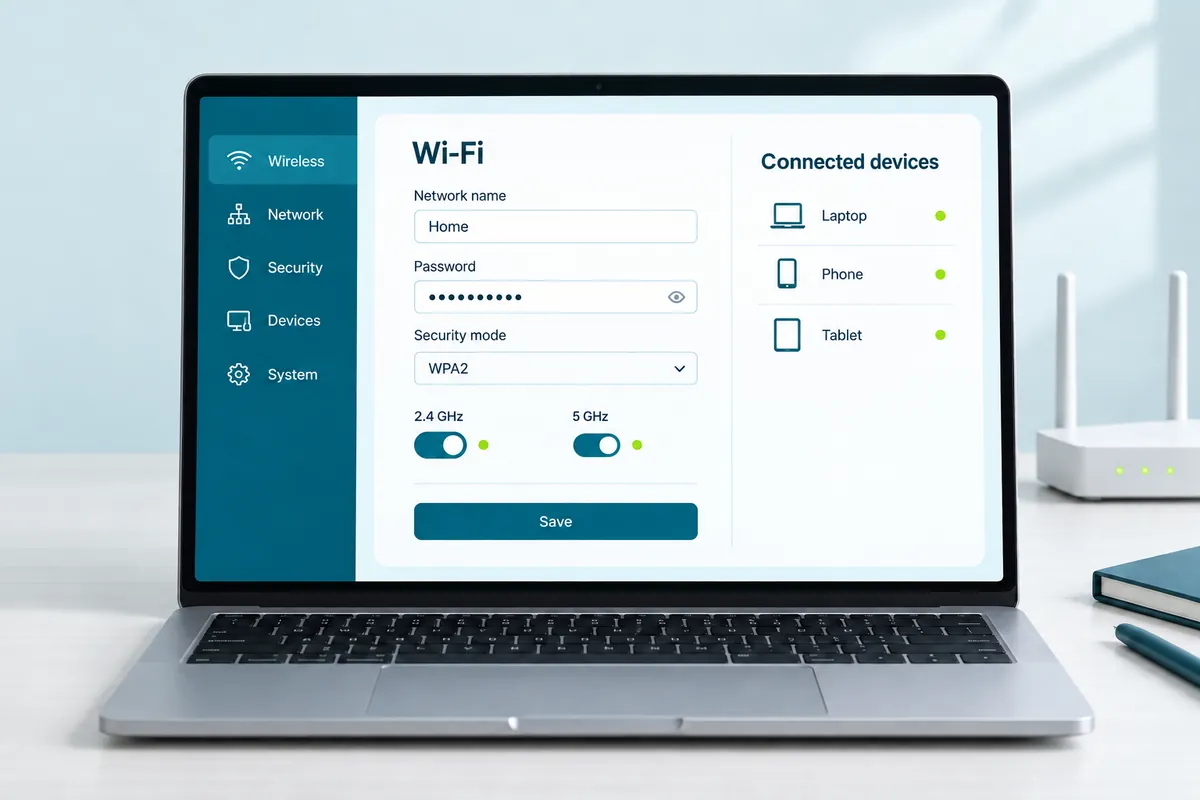
Most of those explain themselves. The ones below cause the most confusion.
Checking who's on your network
Look for a page called Attached Devices, Connected Devices, Clients or Device List. Each entry usually shows a device name, a local IP address and a MAC address. Phones and smart plugs often appear under vague names like "Android-3" or a string of letters, so an odd entry isn't automatically an intruder.
To match names to devices, switch things off one at a time and watch which entry disappears. If something still doesn't belong, most routers let you pause or block it from the same list. Router apps show it too; T-Mobile's T-Life app, for example, lets you see who's connected to its gateways. Blocking stops one device. Changing the Wi-Fi key removes everyone who knows it, which is the better fix if you think the password got out.
Getting a smart plug or camera to pair (2.4 GHz)
Many smart plugs, bulbs and cameras can only join a 2.4 GHz network. Routers with Smart Connect or band steering broadcast one name for every band, and some of these gadgets won't pair with it. On most routers the fix looks like this:
- In the wireless settings, turn off Smart Connect (some brands call it band steering).
- Give the 2.4 GHz band its own name, such as
HomeNet-2G, and save. - Put your phone on that name, then run the gadget's setup app.
- Leave the bands split, or turn Smart Connect back on and check that the gadget still connects.
The 6 GHz band exists only on Wi-Fi 6E and Wi-Fi 7 hardware, and not on every Wi-Fi 7 model. Older phones and laptops can't see it at all.
Channel and channel width
Leave both on Auto unless you have a specific reason to change them. Auto lets the router pick a quieter channel for you. If you do switch channels, expect Wi-Fi to drop for a few seconds while the radio restarts, after which devices reconnect by themselves. On 2.4 GHz, a 20 MHz width is the safe choice. Wider settings on 5 GHz are faster at close range but pick up more interference.
Reserving an address for one device
A DHCP reservation makes the router give a device the same local IP address every time. It's handy for printers, game consoles and anything you forward a port to. Look under LAN, DHCP or Address Reservation, then pick the device from the list or type its MAC address.
Phones need extra care. iPhones and most Android phones use a private, randomized MAC address on each Wi-Fi network, so the reservation has to use the address the phone shows for your network, not the one in its About screen.
- iPhone: open Settings > Wi-Fi and tap the More Info button next to your network. On iOS 18 and later, Private Wi-Fi Address offers Off, Fixed or Rotating. Rotating switches to a new address every two weeks, so choose Fixed for a phone you reserve, then copy the address shown on that screen.
- Pixel and other Android phones: open the network's own settings (on a Pixel, Settings > Network & internet > Internet, then the gear next to your network). The randomized MAC is listed there, with a privacy option to use it or the phone's own MAC.
Swapping DNS servers
Changing the router's DNS is safe and easy to undo. Note the current entries first (often "automatic" or "from ISP"), then type the new primary and secondary addresses. The change covers every device that takes its settings from the router, which is how many families add filtered DNS for kids. Some ISP gateways lock this field. If yours does, set DNS on each device, or put your own router behind the gateway.
Opening ports: manual forwards vs UPnP
Port forwarding opens a path from the internet to one device inside your home, such as a game console or a camera recorder. UPnP lets apps and consoles open those paths on their own, without asking you.
Every open port is a way in. Forward only the ports a device's maker lists, point them at a device with a reserved address, and delete rules you no longer use.
A manual forward for the one device that needs it is tidier than leaving UPnP open for everything. If a console reports a strict NAT type, or you suspect "double NAT," you probably have two routers in a row. The double NAT fixes explain that setup.
Keeping firmware current, and saving your setup
Turn on automatic updates if your router offers them. If you update by hand, download firmware only from the maker's own support site, for your exact model and hardware version, and keep the router powered until it finishes.
Before a big change, save a configuration backup. NETGEAR keeps it under Advanced > Administration > Backup Settings; other brands use similar Administration, System or Maintenance menus. Plan on restoring that file to the same router, because makers rarely document loading it onto a different model.
Changing the router's admin password
The admin password guards this control panel and has nothing to do with your Wi-Fi key. If the router still uses a printed or factory password, change it before anything else.
- Open the administration area. NETGEAR uses Advanced > Administration > Set Password; TP-Link uses Advanced > System > Administration.
- Find the password field. Linksys labels it Router Password, TP-Link calls it the local password, and other brands use wording like Administrator Password.
- Enter the current password, then the new one (many routers ask for it twice).
- Save or apply. Some routers sign you out right away.
- Sign back in with the new password, then store it in a password manager.
Devices on your Wi-Fi stay connected the whole time, because they join with the wireless key. Choose a long password you don't use anywhere else. NETGEAR and TP-Link both offer a recovery option you can set up now. Without one, a forgotten password means a factory reset.
Three logins people confuse
Many current routers involve three separate credentials. Changing one leaves the other two alone.
| Credential | What it protects | Where it's usually changed |
|---|---|---|
| Wi-Fi key | Joining the wireless network | Wireless settings or the router app |
| Local admin password | The settings page at 192.168.1.1 | Administration or System menu |
| App or cloud account (NETGEAR account, TP-Link ID, Linksys or eero account) | The phone app and remote access | The maker's account site or app |
Signing in to the app account doesn't change or reveal the local admin password. eero is the exception to the three-way split: it has no browser settings page, so your eero account is the only way in.
A new Wi-Fi name or key in four steps
- Sign in at 192.168.1.1 and open Wireless, Wi-Fi or WLAN.
- Edit the network name (SSID) and the password, which may be labeled Passphrase, Network Key or Pre-Shared Key.
- Save. The router restarts Wi-Fi, and every device drops off.
- Reconnect each device with the new key, starting with the one you're holding.
If your bands have separate names, update each one. For app methods, security modes and gadgets that refuse to reconnect, use the full Wi-Fi password walkthrough.
Who ships routers on 192.168.1.1
The address is common but far from universal. These makers and providers often put their equipment on 192.168.1.1, and a few also answer to a name you can type instead. The label on your router has the final word.
| Brand or provider | Where 192.168.1.1 applies | Name you can type instead |
|---|---|---|
| NETGEAR | Many home routers (others use 192.168.0.1) | routerlogin.net |
| Linksys | Many home routers, including Smart Wi-Fi models | myrouter.local |
| ASUS | Some models; others default to 192.168.50.1 | asusrouter.com |
| Verizon Fios | Fios Router | myfiosgateway.com |
| Ubiquiti UniFi | Gateways, until you change the network | No common name |
| ISP fiber routers (from providers such as Airtel and PLDT) | Many units, though it varies | Check the device label |
| OpenWrt | Default LAN address after install | No common name |
| pfSense | Default LAN address on a new install | No common name |
Plenty of other brands start at 192.168.0.1 instead. The makers that start on 192.168.0.1 are listed separately.
When the router wants an app, not a browser
Some systems have no settings page in a browser, or show only a status screen or a cut-down menu. They're built to be set up and run through an account on your phone, so typing 192.168.1.1 or any other address won't bring up the full settings. For these, the app is the control panel.
| System | How you manage it | App to use |
|---|---|---|
| eero | App only | eero |
| Google Nest Wifi and Google Wifi | App only | Google Home |
| Starlink | App only; the dish status page isn't router settings | Starlink |
| TP-Link Deco | App first; many models also have a web page at tplinkdeco.net | Deco |
| T-Mobile Home Internet | App | T-Life |
| Xfinity gateways | App, plus a browser Admin Tool you switch on | Xfinity |
Xfinity keeps its web Admin Tool at 10.0.0.1 closed until you allow it. In the Xfinity app, go to the WiFi tab, select View WiFi equipment, open Advanced settings and choose Admin Tool online access. Slide the toggle to Allow Admin Tool access, tap Save, and set a password when asked. Xfinity's instructions say that keeping the tool deactivated helps protect against online threats, so switch it off again when you finish.
When the app can't find your router on an iPhone
Apps such as Nighthawk, Deco, Tether and eero need permission to talk to devices on your home network. If one keeps saying it can't find the router, open Settings > Privacy & Security > Local Network and switch access on for that app, as Apple's Local Network page describes. Then check that the phone is on the router's Wi-Fi and that no VPN is running.
Giving the router a new local address
Most people never need to do this. The usual reason is two boxes on one subnet: an ISP modem-gateway and your own router both sitting at 192.168.1.1, so the login page belongs to the wrong device or the connection misbehaves. Moving your router to something like 192.168.2.1 clears the clash.
The option lives in the LAN or Network settings. When you save, the router restarts its local network and your devices pick up new addresses. From then on you sign in at the new address, and any reservations or port forwards need updating to match. The step-by-step LAN address change has the full procedure.
Hardening checklist for a home router
- Replace the factory admin password with a long, unique one.
- Pick WPA3, or WPA2/WPA3 mixed mode if older gadgets need it. Never WEP, WPA or TKIP.
- Turn off WPS, the PIN method above all.
- Disable remote management (also called remote administration or remote access) unless you actually use it.
- Review UPnP and switch it off if nothing needs it.
- Enable automatic firmware updates, or check for new versions every few months.
- Move smart-home devices to the guest network and turn on client isolation there, then test them, since some casting and hub devices need to see your phone.
- Scan the connected-devices list now and then, and block what you can't identify.
- Keep ISP admin tools off when idle, as Xfinity advises for its Admin Tool.
- Retire end-of-life hardware that no longer gets updates.
Should WPS stay on?
Turn it off. WPS makes pairing easier, but its eight-digit PIN can be brute-forced on many routers, and the push button lets anyone with hands on the router add a device. Phones and laptops join just as easily with the Wi-Fi key.
Should UPnP be on or off?
If nobody in the house plays online games, runs a home server or uses apps that need incoming connections, switch it off. If someone does, a manual port forward for that one device is the safer route. With UPnP left on, any app on the network, including one on an infected device, can open ports without asking.
Old routers that stopped getting updates
An end-of-life (EOL) router no longer receives security fixes, and attackers go looking for exactly those. In May 2025 the FBI warned that criminals were infecting old Linksys routers, including the E1200, E2500, E3000 and WRT320N, with variants of TheMoon malware and selling access to them as proxies. Its advice: replace those routers or, at the very least, reboot them and turn off remote administration.
On April 23, 2026, CISA, the FBI, the NSA, the UK's NCSC and partner agencies in several other countries published advisory AA26-113A. It describes covert networks built mostly from hacked home and small-office routers, plus gear such as web cameras, many of them past end of life. Its advice for owners is to run the latest supported versions and apply security updates promptly.
To check your own router, search the maker's support site for the model number. Most brands publish end-of-life or end-of-support lists. If the newest firmware is years old, start planning a replacement.
Buying a replacement
On March 23, 2026, the FCC added foreign-made consumer routers to its Covered List. That bars new models from FCC authorization unless they get a Conditional Approval. The FCC fact sheet says the change doesn't affect routers people already own, and retailers can keep selling models approved before it. A working router that still gets updates doesn't need replacing because of this rule.
The U.S. Cyber Trust Mark, a voluntary FCC security label for connected devices, is worth looking for, though you won't see it often yet. The program is still getting started: the FCC named ioXt Alliance as its lead administrator on April 13, 2026, and opened a filing window for label administrators on August 11, 2026.
The 192.168.1.1 fix list, cheapest step first
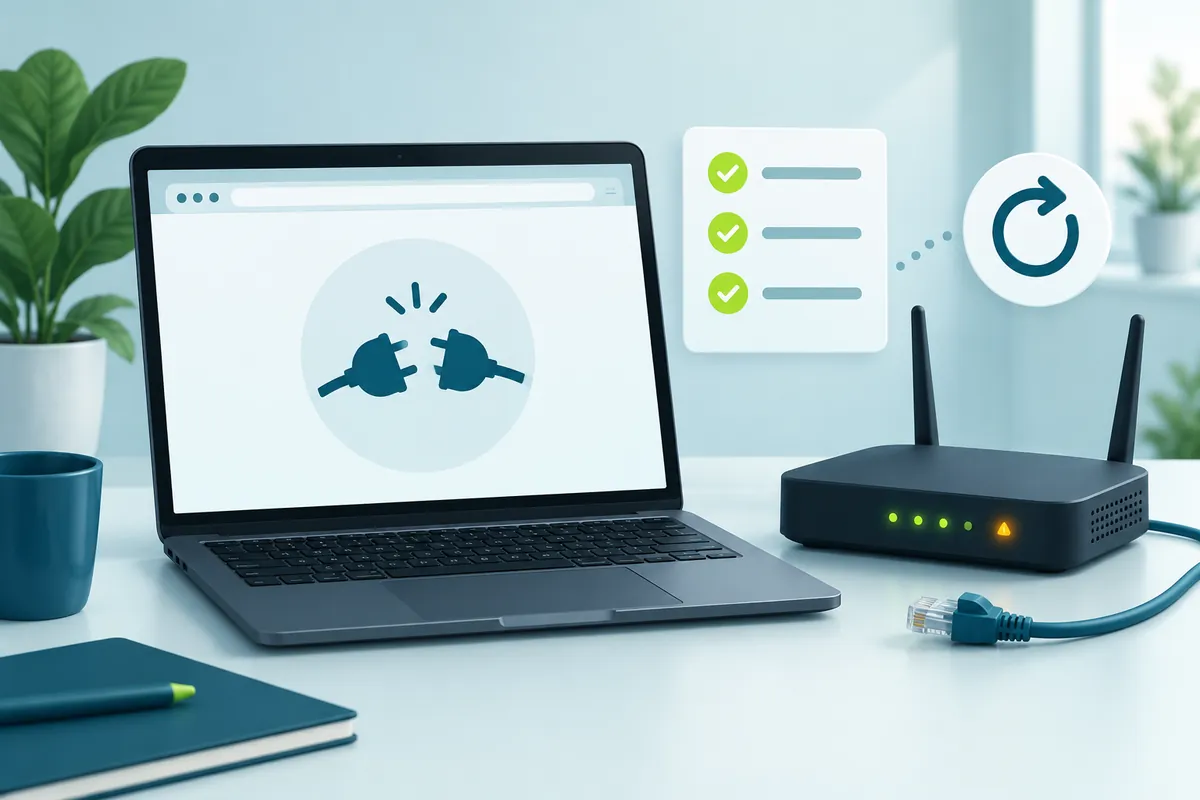
When 192.168.1.1 is not working, the fault is usually on your side of the connection rather than inside the router. Go through the list in order. Each check is quicker and changes less than the one after it.
- You're on mobile data, a VPN or the guest Wi-Fi. Join the main Wi-Fi network or plug a cable into one of the router's LAN ports, and pause the VPN.
- Your router uses a different address. Look up your device's gateway with the table further down. If it shows 192.168.0.1, 10.0.0.1 or 192.168.50.1, type that number instead.
- The address went into the search box. Type
http://192.168.1.1into the address bar, digits and dots only. - The browser jumped to https or an old saved page. Retype the full address with
http://in front, or open a private window. - A name like routerlogin.net fails. Type the number instead. A web name only works when the lookup reaches your router, and the number skips that step.
- Your device kept old settings. Turn off any manual proxy and set the network adapter back to automatic (DHCP).
- It still won't load. Try a second browser or device. Then restart the router: unplug it, wait about a minute, plug it back in and give it a few minutes to boot.
- Nothing else worked. A factory reset comes last, because it wipes your Wi-Fi name, passwords and custom settings. Read the reset section earlier on this page before you press anything.
Connected, but not to the part you need
A device can show full Wi-Fi bars and still be talking to the wrong box, or be fenced off from the router on purpose. These four setups cause most of the confusion.
A VPN is steering traffic away
A VPN sends your traffic through a tunnel, and some tunnels take local addresses with them. Many VPN apps have a setting with a name like "Allow LAN" or "local network access" that keeps 192.168.x.x requests at home. A work VPN is stricter: if the office network also uses 192.168.1.0/24, your request can be routed toward the office instead of your router. Disconnect the VPN, open the page, then reconnect.
The guest network is walled off by design
Guest Wi-Fi exists to give visitors internet access and nothing more, so routers normally block the admin page from it. Switch to your main network name, or use a cable, before you sign in.
An extender answers instead of the router
On a range extender's network, the login page you get depends on the extender. One that isn't set up yet, or has lost its link to the router, can hand your device an address of its own, and 192.168.1.1 then leads nowhere. Extenders have separate sign-in pages. NETGEAR's answer at mywifiext.net or 192.168.1.250, and TP-Link's at tplinkrepeater.net or 192.168.0.254. To reach the main router, join its own network or plug into it.
Your ISP modem also sits on 192.168.1.1
Some homes run an ISP modem-router with a second router behind it, both set to 192.168.1.1. The symptoms are odd: the address opens the other box's login page, or your own router reports no internet at all. The section on a modem and router sharing one range explains why two boxes can't share that address and how to separate them.
Browser security screens in the way
Most router pages still run on plain http://, while browsers keep pushing everything toward encrypted https://. That mismatch produces three screens.
- Firefox's HTTPS-Only Mode. With the mode switched on, Firefox can show a "Secure Site Not Available" page. It has a "Continue to HTTP Site" button, and you can add a permanent exception under Settings > Privacy & Security > HTTPS-Only Mode > Manage Exceptions, as Mozilla's HTTPS-Only help page explains.
- Chrome's secure-connection warning. Chrome is moving toward a warning before it opens plain http sites, but Google leaves private addresses such as 192.168.1.1 out of it. If Chrome still lands on https, type
http://in full. - A certificate warning. Routers that do serve https usually use a self-signed certificate, so the browser objects. Continue only when the address bar shows your own gateway number or your router maker's web name.
Since Chrome 142, a public website that tries to reach devices on your home network triggers a prompt asking to "look for and connect to any device on your local network." Typing 192.168.1.1 yourself never causes it. Online "router login" tools can, so allow it only for a site you trust.
Leftovers on your own device
- A stale bookmark or autocomplete entry. The address bar may offer an old
https://link or the web name of a router you no longer own. Type the address fresh, or test in a private window, which starts without your cookies and cached pages. - A proxy server. A proxy set in the system or the browser can swallow local requests. On Windows 11, check Settings > Network & internet > Proxy. On a work laptop, ask IT before changing anything there.
- DNS settings, which don't touch the number. Android's Private DNS, a custom DNS server and the browser's secure DNS (DNS over HTTPS) only change how names such as
routerlogin.net,tplinkwifi.netormyrouter.localare looked up. A typed IP address skips DNS entirely, so when a name fails, the number is the workaround. - A fixed IP on the wrong network. A laptop set by hand to, say, 192.168.0.50 can't reach a router on 192.168.1.x. Switch the adapter back to automatic. In Windows 11, open your Wi-Fi or Ethernet network's properties, select Edit next to IP assignment and choose Automatic (DHCP).
What the browser error is telling you
The wording of the error narrows down where the problem sits. Chrome and Edge print these codes under the main message; Firefox and Safari use plain-language versions.
| Message you see | What it usually means | Try this first |
|---|---|---|
ERR_CONNECTION_REFUSED, "refused to connect" (Firefox: "Unable to connect") | Something answered at that address, but no admin web server is there. You may have the wrong protocol or port, admin access may be switched off over Wi-Fi, or the gateway isn't the router | Try http:// and https://, use a cable, confirm your gateway |
ERR_CONNECTION_TIMED_OUT, "took too long to respond" | Nothing answered at all | Check the network you joined, the VPN and your IP range |
ERR_ADDRESS_UNREACHABLE | Your device has no route to that address, so it isn't on that network | Rejoin the main Wi-Fi or plug in |
| A blank or white page | The page arrived but didn't draw: an extension blocking scripts, or old router firmware in a new browser | Another browser, or a private window with extensions off |
A quick ping 192.168.1.1 shows whether anything lives at that address. Run it in Command Prompt on Windows or Terminal on a Mac (press Control-C to stop it on a Mac). Replies prove a device exists there, even when the page won't load. No reply points back to the network checks, although a few devices ignore ping by design.
192.168.1.1 on a phone: four things that trip it up
Phones switch networks quietly, and that explains a lot of blank screens on mobile.
- Mobile data takes over. When the Wi-Fi has no internet, as during first-time setup, iPhone's Wi-Fi Assist (Settings > Cellular > Wi-Fi Assist) and Android's own network switching can push traffic over cellular. Turn mobile data off for a moment, then reload the page.
- Android's "no internet access" prompt. Android may warn that the Wi-Fi has no internet and offer to switch away. Choose to stay connected, or the phone can drop the router's network.
- In-app browsers. Links tapped inside Gmail, Facebook or Instagram open in that app's own viewer, not your real browser. Copy the address into Safari or Chrome instead.
- Desktop-only layouts. Some older admin pages were built for large screens, so buttons end up off to the side. Turn on "Request Desktop Website" in Safari's page menu or "Desktop site" in Chrome's menu.
Offline is fine: the router hosts its own page
You don't need a working internet connection to open 192.168.1.1. The admin page is stored on the router itself, so your device only needs a link to the router, by Wi-Fi or cable. That's why first-time setup works before the ISP line is live, and why you can still sign in during an outage to read the WAN or internet status. TP-Link says the same about its extenders, whose setup page loads without internet.
The only catch is on phones: a Wi-Fi network with no internet is exactly when mobile data tends to take over.
192.168.l.l, 19216811 and other typing slips
192.168.l.l is a mistyped 192.168.1.1: lowercase L letters sit where the digit 1 belongs. The browser stops seeing an IP address, treats the entry as a search term or website name, and shows search results instead of your router.
The same happens with 192.168.1.l, where only the last character is a letter, and with 192.168.o.1, where a letter o stands in for a zero. Leaving the dots out, as in 19216811, gives the browser a plain number it won't turn into your router's address. A broken prefix such as http//192.168.1.1, with the colon missing, fails too.
In many fonts l and 1 look almost identical. If you copied the address from a video caption or a forum post, delete it and type 192.168.1.1 by hand.
Where each device shows the router address
If 192.168.1.1 isn't your gateway, your device already knows the right number. The table shows where to find it, and the gateway lookup walkthrough for every system has the full steps.
| Device | Where to look | Field name |
|---|---|---|
| Windows 11 or 10 | Command Prompt, then run ipconfig | Default Gateway |
| Mac | System Settings > Wi-Fi > Details > TCP/IP | Router |
| iPhone or iPad | Settings > Wi-Fi > (i) next to your network | Router |
| Android | Wi-Fi settings > your network's details | Gateway or Router |
| Linux or Chromebook | Linux: run ip route. Chromebook: Settings > Network > your network | "default via" on Linux, Gateway on ChromeOS |
Your router isn't on 192.168.1.1?
These addresses turn up often on home networks. The gateway lookup guide shows how to confirm which one yours uses.
- 192.168.0.1 How it differs from 192.168.1.1
- 10.0.0.1 Xfinity and other cable gateways
- 192.168.1.254 AT&T and BT gateways
- 192.168.50.1 Wi-Fi 6 and newer ASUS routers
- 192.168.86.1 Google Nest Wifi (app-managed)
- 192.168.4.1 eero systems (app-managed)
- 192.168.12.1 Earlier T-Mobile 5G gateways
- 192.168.100.1 Cable-modem and Starlink dish status
What else people want to know about the router page
Is it risky to sign in when the browser labels the page "Not secure"?
On your own home network the risk is low. "Not secure" means the page uses plain http, so the browser doesn't encrypt what you type. On home Wi-Fi protected with WPA2 or WPA3, or over a cable, that traffic stays inside your network. Avoid signing in over open or shared Wi-Fi, and turn on HTTPS admin access if your router offers it.
Does saving a router setting knock me offline?
Sometimes. Changing the Wi-Fi name, key, band or channel disconnects every wireless device, including the one you're using, so you'll need to rejoin. Changing the router's LAN address or updating firmware usually restarts it. Many other settings apply without a drop. Make big changes from a wired device when you can, and note the new details before you press Save.
My neighbor's router uses 192.168.1.1 as well. Will our networks clash?
No. 192.168.1.1 is a private address that homes everywhere reuse without conflict. Each router keeps that address inside its own network and faces the internet with a separate public IP from the ISP. A clash only happens when two devices share one address on the same network, such as a modem and a router in the same home.
Can whoever manages the router see what sites I visit?
Partly. The admin page usually lists connected devices, and many routers can show or log the website names each device looks up, especially with parental controls on. HTTPS keeps page contents, messages and passwords private, but site names can still appear. On a network someone else runs, assume they can see that much.
Why doesn't my router's menu look like the screenshots I find online?
Router makers redesign their interfaces, ship different firmware by model and region, and ISPs often install their own version. A screenshot from another model or an older firmware release can look nothing like yours. Check the model number on the label and follow the maker's manual for that exact model.
Do I need one of the "192.168.1.1" apps from the app store?
No. Any browser on a connected device opens the router page, so an extra app adds nothing. Apps named after the address generally come from third-party developers, not router companies. If you want an app, use the one your router maker or ISP names on its own support site, such as NETGEAR's Nighthawk app or TP-Link's Tether and Deco apps.
Why does the router say another administrator is already signed in?
Many routers, TP-Link models among them, allow one admin session at a time. The other session is usually a forgotten browser tab or a router app on another phone or computer. Sign out there, or close that tab and wait a few minutes for the session to time out, then try again. Restarting the router also clears it.
Is my modem the same box as my router?
It depends on your setup. A modem connects to your ISP's cable, fiber or phone line, while a router builds your home network, hands out addresses and usually runs the Wi-Fi. Many ISPs supply a gateway that does both jobs in one box. With two boxes joined by a cable, the one your devices connect to is normally the router.
Why does the address bar change to a name like routerlogin.net after I type the number?
Your router is redirecting you to its own web name, and it's the same settings page. NETGEAR routers commonly do this with routerlogin.net. If the name then fails to load, a custom DNS or Private DNS setting on your device is the usual cause. Switch that setting off for a moment and try again.
Should I let the browser save my router password?
It's reasonable on a personal device that locks with a PIN, fingerprint or face scan. The risk is that anyone else using that browser profile can open your router settings in seconds. Skip saving it on shared or family computers, and consider a password manager, which also keeps the admin password apart from your Wi-Fi key.
Keep going